
Codex on iMac, MacBook, and iPhone — my way of working
The iMac does the work, I take the MacBook when I travel, and I mainly use the iPhone to talk. How to connect that setup and view a demo that remains on the main computer.
- Goal
- Show how to set up one main computer for working with Codex and use it from a laptop and phone.
- Tools
Codex — remote connections · access to the main computer; ChatGPT on iPhone · conversations and directing tasks
- Process
- Choose a main computer → connect devices → check the project → work remotely and review the demo in screenshots.
- Result
- My iMac–MacBook–iPhone setup and instructions for a similar connection. Cloud projects remain to be explored.
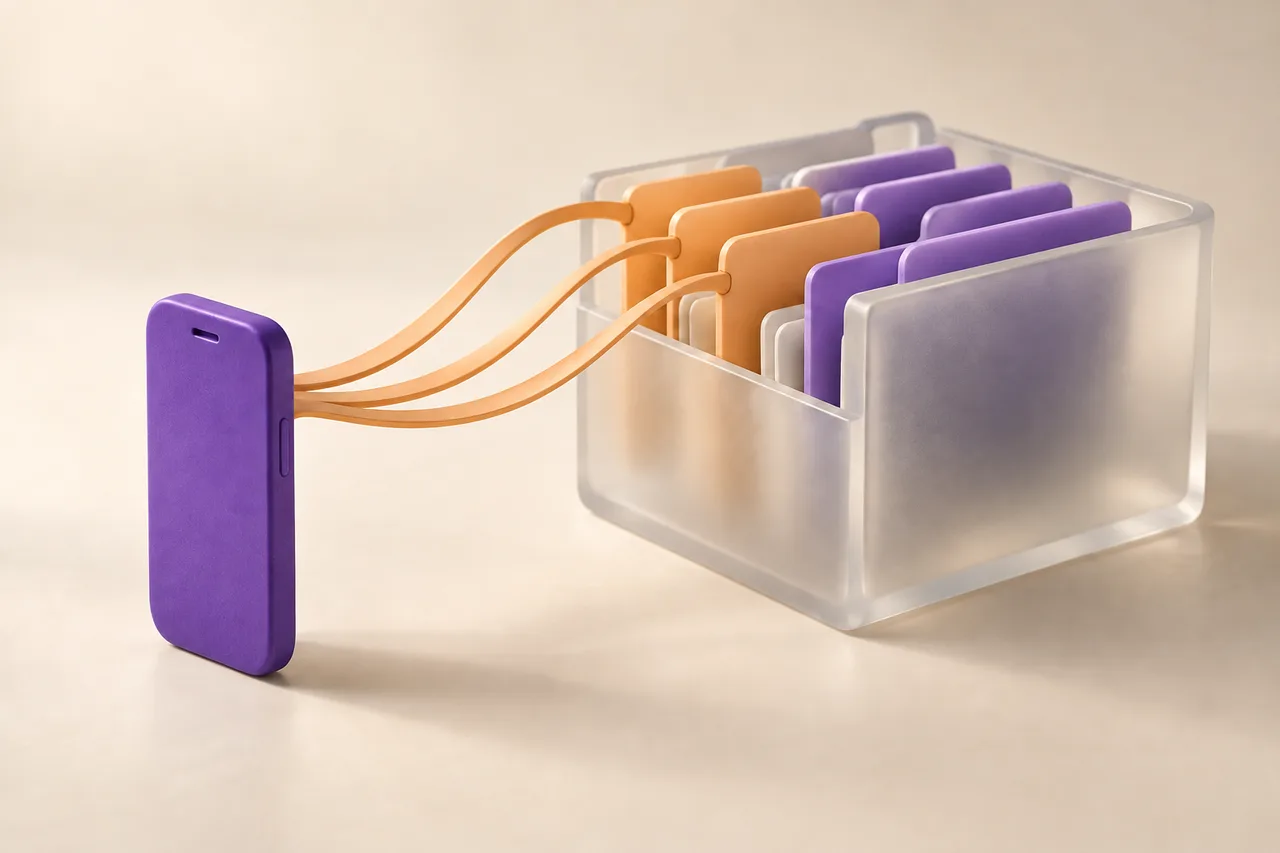
I eventually had to choose which computer would be my main place for working with Codex. I chose the iMac. When I travel, I take the MacBook and use it remotely. I mainly use the iPhone to talk: I return to a task, add something, or discuss the next step.
I have not come up with a smarter setup so far, although I have tried. At least this one gives me a clear reference point: I know which computer is doing the work. The biggest difficulty is viewing the demo — I will come back to that.
First, choose the main computer
My devices have these roles:
| Device | What I use it for |
|---|---|
| iMac | My main place for working with Codex and running the local demo. |
| MacBook | I take it when I travel and connect it to the main computer. |
| iPhone | Mainly for conversations, clarifying a task, and checking what is happening. |
This is my choice of how to organise the work. If you want to repeat it, start by identifying the computer that has your project and on which you want tasks to be performed. Remote access should lead to that computer.
The most important question before your next instruction is: which computer will do this work? The MacBook in front of me may only be the device I use to direct a task on the iMac.
How to connect the iPhone
The following is how to set up a similar arrangement according to OpenAI documentation checked on 7 October 2026. Screen names may depend on the app version; the documentation describes the ChatGPT desktop app, where Codex is available.
- On the iMac, open the app settings: Settings → Connections → Control this Mac. Start adding a connection and approve the required permissions.
- Use the iPhone to scan the displayed QR code. Complete pairing in the ChatGPT app, using the same account and workspace.
- Open Codex on the phone — or Remote, if the app still uses that name. Choose the iMac, then the right task or project.
Only pair devices you own and trust. If the feature is missing, check for app updates — availability also depends on the rollout and workspace settings. Official mobile instructions.
How to connect the MacBook to the iMac
For a connection between desktop apps, OpenAI describes this option:
- On the MacBook, open Settings → Connections → Control other devices.
- Add the iMac and complete pairing by following the app's instructions. Connecting the phone does not replace pairing the laptop.
- After pairing, open the relevant conversation on the MacBook, or start a task by choosing the connected iMac and project.
The iMac must stay on, connected to the internet, and have the app running. In the connection settings, you can enable keeping the computer awake. When the main computer sleeps or loses its network connection, this way of working is no longer available. Remote connections and another computer.
Check the connection before you leave
My suggestion for a simple test: open the same task from the second device and ask it to read a harmless project file. A conversation title is weaker evidence than a current readout of the right file.
Let’s check that I am working remotely in the right place.
Expected computer: [name of the main computer].
Project: [project name].
Control file without private data: [path to the file].

Do not change files or settings.
State which computer and project directory you can confirm now.
Read the first heading of the specified file.
Separate the current readout from information in the conversation history.
If you cannot confirm the computer or access, say so plainly.
This is a template prepared for this article. A correct result identifies the right workspace and reads the chosen file. If the agent reports a different location or does not have access, first return to selecting the computer and project.
It is worth running this test while you are still at your desk, when you can correct the connection right away. If you want to check working away from home, repeat it from a phone using mobile internet.
When to use the laptop and when to use the phone
I take the MacBook when I want to keep working at a computer while travelling. The iPhone is mainly useful to me for conversation. I do not have to return to my desk for every clarification.
Examples of using this setup:
- A quick note on the way: add to an existing conversation what to change in the task or what to leave for later.
- Longer work away from home: open on the MacBook a conversation that is being worked on on the iMac and go through the result on a larger screen.
- Back at the desk: continue on the main computer and look more closely at items that could not be assessed remotely.
In my way of working, the phone is mainly there to make conversation and the next decision easier.
The biggest problem: the demo stayed on the iMac
The conversation works remotely, but I view the demo in the local browser on the computer where it is being made. In my current setup, this is where the problem appears. So I ask for screenshots.
A link such as http://localhost:3000 does not solve the problem on its own. When opened normally in the phone's browser, it points to that phone, not to the iMac. I need to see the real result on the main computer.
Here is how you can ask to see it:
I am working remotely now and want to see the current demo.

Open the demo on the computer where the project is running.
Check that it shows the most recently completed change.
Attach a current screenshot of the entire relevant view to the response,
and a close-up of the changed element if it is not readable.
If the change affects responsive layout, also show a narrow phone view.

Briefly describe what you checked, what works, and what still needs my assessment.
If this concerns a button or transition, test it and describe the result;
do not treat the image alone as evidence that it works.
Do not replace the screenshot with a generated illustration or an old image.
If you cannot open the demo or take a screenshot, say so plainly.
Do not publish the demo or change access to it as part of this request.
A screenshot lets me see the layout and request a correction. I cannot assess an animation or the full clicking flow from a single image, though. Assessing behaviour requires a separate test and its result, and sometimes a return to the interactive demo.
Both prompts are also available as TXT files to download.
To explore: cloud projects in Codex
The next subject for me is cloud projects. I want to check whether they can reduce dependence on one computer and make it easier to view results from different devices.
I have specific questions here: where will the files be, how will I return to the same task, how will I view the demo, and which parts of my local workspace will need to be connected separately. I do not yet have a finished way of working with this to recommend.