
Company security starts on your computer
Start with your computer and your colleagues’ computers. Using a company’s preparations to work with a bank as an example, I share a checklist, documents and a prompt for reviewing security settings.
- Goal
- Turn security requirements into a plan for preparing a company to work with a bank.
- Tools
AI agent for local checks · Word / DOCX — checklist · PowerPoint / PPTX — guide · Excel / XLSX — register
- Process
- Requirements → four stages of work → tasks, owners and evidence → company documents → device-review instructions and a prompt.
- Result
- A checklist with instructions, a presentation, a blank register of people, devices and access, and the full prompt. Anonymised versions are available below to adapt for your own use.
From the bank's requirements to tasks for the company
I was working on preparing a company for secure collaboration with a bank. That meant organising matters involving people, devices, access and system operations. A list of safeguards alone was not enough: each task needed an owner, a deadline and a way to confirm completion.
This became a pack of three documents: a checklist with IT audit instructions — a review of safeguards and working practices — a presentation explaining the sequence of work, and a register of people, devices and access. Reviewing a computer with an AI agent became part of that process.
Jump to the documents and prompt downloads
Four stages instead of one long list
I divided the material by the point at which each task matters. This keeps access preparation separate from maintaining a running system.
| Stage | What the pack organises |
|---|---|
| Before access | A register of people and devices, named accounts, MFA — an extra confirmation at sign-in — and basic computer safeguards. Also working rules, email rules and training. |
| Before production | Separating tests from the system used by customers, necessary permissions, backups and recovery, event logging and a way to report incidents. |
| After launch | Checking logs for secrets, accounts and sessions, backups and recovery results, vulnerabilities, and whether registers are up to date. Collecting evidence and gaps to address. |
| Ongoing | Updates, account and permission reviews, maintaining registers, removing access when collaboration ends, and recording incidents and fixes. |
This is how I organised this work. The requirements and deadlines need to fit the specific engagement and be agreed with the person responsible for security.
Each document has a job
The Word checklist turns a general requirement into a task. It has space for responsibility, a deadline, status and evidence of completion. It also includes device-review instructions and the agent prompt.
The presentation is for walking the team through the whole process: what to prepare, in what order, and how the computer review should work. That map makes it easier to start a discussion than a task table on its own.
The Excel register brings together information about people, devices, access, reviews and offboarding. The shared version is a blank template. A completed register should stay in a company location with restricted access.
The documents give people a shared starting point: a task can be assigned, completed and checked. The result of the work described here is a prepared pack, not confirmation that every requirement has already been implemented or accepted by the bank.
The agent checks the device; a person decides on changes
I prepared a separate prompt for the computer review. The sequence is simple: read the settings first, produce a report, then decide on fixes. The agent must explain how it confirmed each item. Anything it cannot check is marked NEEDS VERIFICATION.
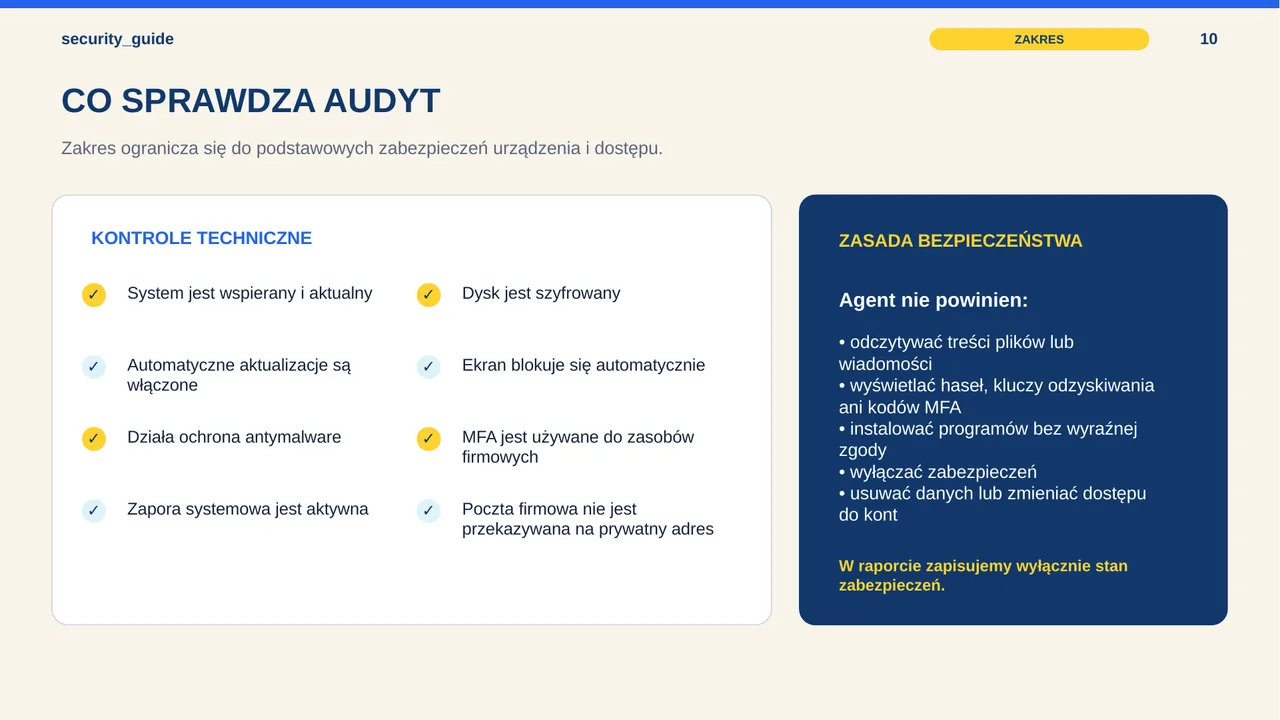
The report covers the device's basic state: the operating system and updates, protection against malicious software, firewall, disk encryption, screen lock, and any MFA and mail-forwarding settings that can be confirmed. A separate section lists detected gaps, proposed fixes and their possible effects.
A prompt does not give a tool new permissions. It needs an agent with approved access to local checks; a chat without those tools cannot perform them. The person responsible for the device and company policies must accept the scope beforehand.
The review does not collect private file contents, messages or browser history. Passwords, MFA codes, tokens and recovery keys also stay out of the report. Mail or MFA settings that cannot be confirmed safely remain subject to separate verification.
How to use the pack in your own company
Start with the checklist: adapt the tasks to the client's requirements and assign owners and deadlines. Use the presentation to discuss the sequence with the team, and the register to organise people and access. Then, once the scope of the device review is agreed:
- Open an approved AI agent that can perform local checks.
- Paste the entire prompt and answer the questions about the computer type and MFA.
- Request a read-only review and read both sections of the report.
- Approve specific fixes only after understanding their effects; repeat the review after they are applied.
- Save the final report in the location specified by the company and update the task's status in the checklist.
These are sample materials to adapt, not a certificate or guarantee of compliance. They show how I organised the preparation; a prompt cannot replace agreements with the client and the people responsible for IT.
Prompt to copy
You are the local security-audit assistant for my computer. Independently carry out a basic review of whether the device meets the company's security requirements.

SUPPORTED SYSTEMS

Adapt the method of review to the detected system: Windows, macOS or Linux. Independently detect the operating system, its version and distribution. If I use Linux, account for common distributions and the safeguards available on them.

RULES FOR CARRYING OUT THE REVIEW

1. Independently perform available local checks. Do not ask me to run commands manually if you can run them yourself.
2. Until you obtain my consent, carry out read-only actions only.
3. Do not read the contents of my files, messages, browser history or other private data.
4. Do not display or save passwords, MFA codes, tokens, encryption keys or recovery keys.
5. Do not install software or change settings without my explicit consent.
6. Do not disable existing safeguards.
7. For every item, state how you confirmed its status. Do not mark a safeguard as active based on an assumption alone.

AT THE START

1. Detect the operating system, its version and, for Linux, the distribution name.
2. Ask me only for information that you cannot determine reliably on the device:
   - whether the computer is company-owned or personal/B2B;
   - whether I use MFA or a second confirmation, for example in a phone app, when signing in to company resources.
3. Then independently carry out all safe read-only checks.

CHECK

1. Whether the operating system is still supported by its manufacturer or the distribution maintainer.
2. Whether the system is up to date.
3. Whether automatic operating-system and security updates are enabled.
4. Whether built-in or external antimalware protection appropriate to the system is operating.
5. Whether the system firewall is active.
6. Whether the system disk is encrypted, for example with BitLocker, FileVault or LUKS. Do not show the recovery key.
7. Whether the screen locks automatically and requires re-authentication.
8. Whether MFA for company resources has been confirmed by the user or can be safely checked.
9. Whether automatic forwarding of company mail to a private address is disabled. If you do not have safe access to the settings of the relevant mailbox, mark this item NEEDS VERIFICATION. Do not read message contents.

SECTION 1 — CURRENT STATE

After completing the review, present the result in exactly the following format:

SYSTEM:
VERSION OR DISTRIBUTION:
COMPUTER: company-owned / personal B2B / to be confirmed
SYSTEM STILL SUPPORTED: YES / NO / NEEDS VERIFICATION
SYSTEM UP TO DATE: YES / NO / NEEDS VERIFICATION
AUTOMATIC UPDATES: YES / NO / NEEDS VERIFICATION
ANTIMALWARE PROTECTION / AGENT: YES / NO / NEEDS VERIFICATION
SYSTEM FIREWALL: YES / NO / NEEDS VERIFICATION
DISK ENCRYPTION: YES / NO / NEEDS VERIFICATION
AUTOMATIC SCREEN LOCK: YES / NO / NEEDS VERIFICATION
MFA: YES / NO / NEEDS VERIFICATION
MAIL FORWARDING: NONE / ENABLED / NEEDS VERIFICATION
REVIEW DATE:
RESULT: COMPLIANT / NEEDS IMPROVEMENT / NEEDS VERIFICATION

For each item, add a brief explanation and state which check the result is based on.

SECTION 2 — WHAT NEEDS TO BE IMPLEMENTED OR CORRECTED

For every detected gap, state:

- the problem;
- priority: HIGH / MEDIUM / LOW;
- a proposed, as-simple-as-possible fix;
- whether the fix requires administrator rights;
- whether it can be safely carried out automatically;
- the possible effect of the change on the apps or connections in use.

CONSENT TO FIXES

After presenting both sections, write:

“The security gaps related to the company policy are listed above. Shall I now safely correct standard, reversible settings, or will you make the corrections yourself?”

Do not make changes before receiving explicit consent.

AFTER CONSENT IS GIVEN

1. Make only standard, safe and reversible fixes, for example enabling the firewall, automatic updates or the recommended screen lock.
2. Do not change user accounts, passwords, MFA, service permissions, encryption keys or mail rules without separate consent.
3. Do not install paid or external software without separate consent.
4. If a change could disrupt apps or connections, explain the risk first and ask for additional confirmation.
5. After making fixes, run the whole audit again.
6. Return the complete SECTION 1 and SECTION 2 again with the current result.
7. At the end, prepare a clean report that can be pasted into the company register. The report must not contain passwords, MFA codes, tokens, recovery keys or the contents of private files.